Flow Tasks
What's on this page?
What is a flow task?
Flow tasks are actions taking place within the flow itself. They are functions which define an input and output. They consume inputs and produce outputs. Flow tasks can also be integrations to a third party service; for example, one can create a task in Jira and return the ID of that task.
Three kinds of flow tasks
A flow can be comprised of any number of three types of tasks, each with its own function. These types are Decision Table Tasks, Service Tasks, and Switch Tasks.
Decision table tasks
Decision table tasks are integrations into decision tables.
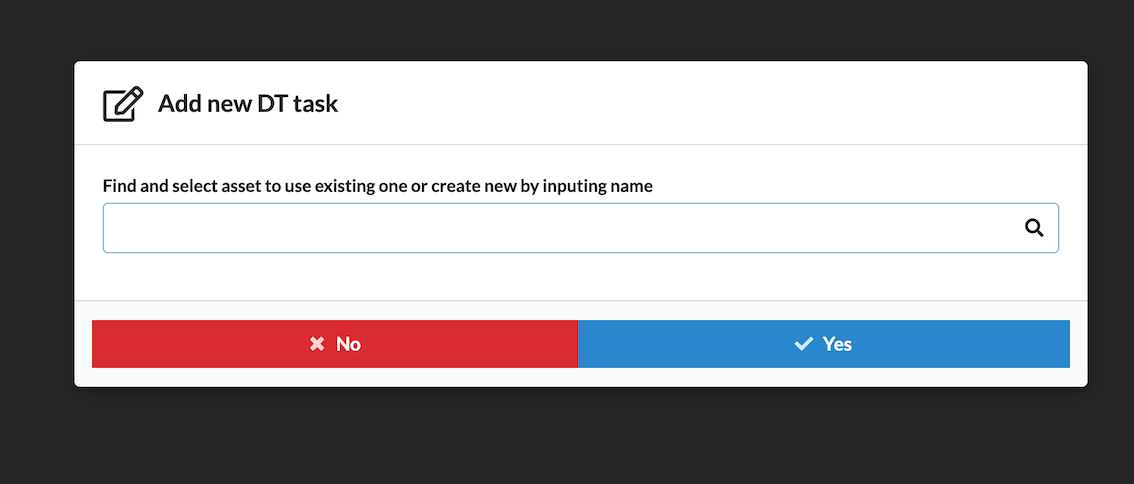
Upon the creation of a new DT task, you will be prompted to assign an ID via the modal window OR search for an existing decision table. If you type the name of a decision table in the search window but that table does not exist yet, theWrench will create a decision table for you with the ID you just entered.
Next, you can manipulate the code for your task.
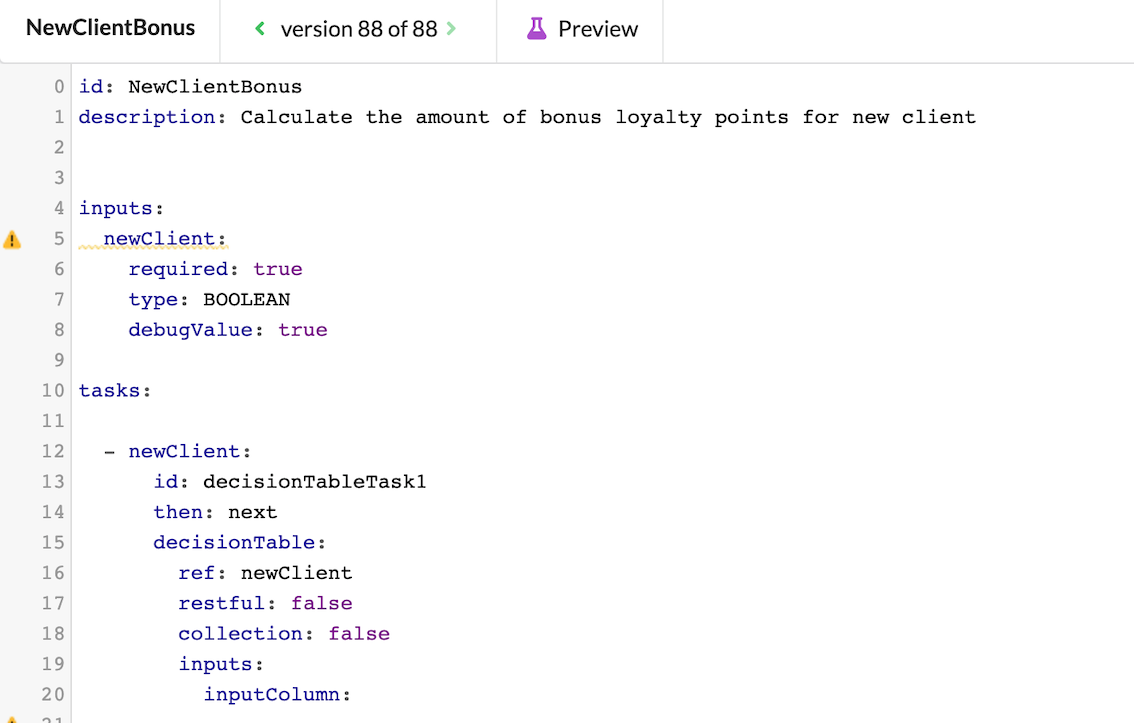
- id: The unique identifier of the task in that specific.
- then: Directs the flow to the next step.
- ref: Links a task in the flow with another asset (service task or decision table)
- restful: Deprecated. No longer in use.
- collection: Tells the flow whether a collection (array) of elements is coming. If set to false: a single element is to be expected. Defaults to false.
If you created a new decision table task, you can navigate to it via the search option in the right-side menu and edit its inputs and outputs.
For more information on keywords, see Glossary.
Service tasks
Service tasks are tasks written in Java and function either as integrations into various services or to perform a mathematical calculation to produce a output which can be passed on to the flow. They can also execute more complicated formulas; for example, summing averages that include specific rounding rules in combination with external data.
Flow tasks are customisable and transparent because because you have access to the task itself via its code. Therefore, you can do whatever Java and Spring do. Also, from time to time, you may want to access services that a developer has written (how to store and retrieve data from a database, for example). In the task code, you can physically integrate the flow to these developer-specified APIs.
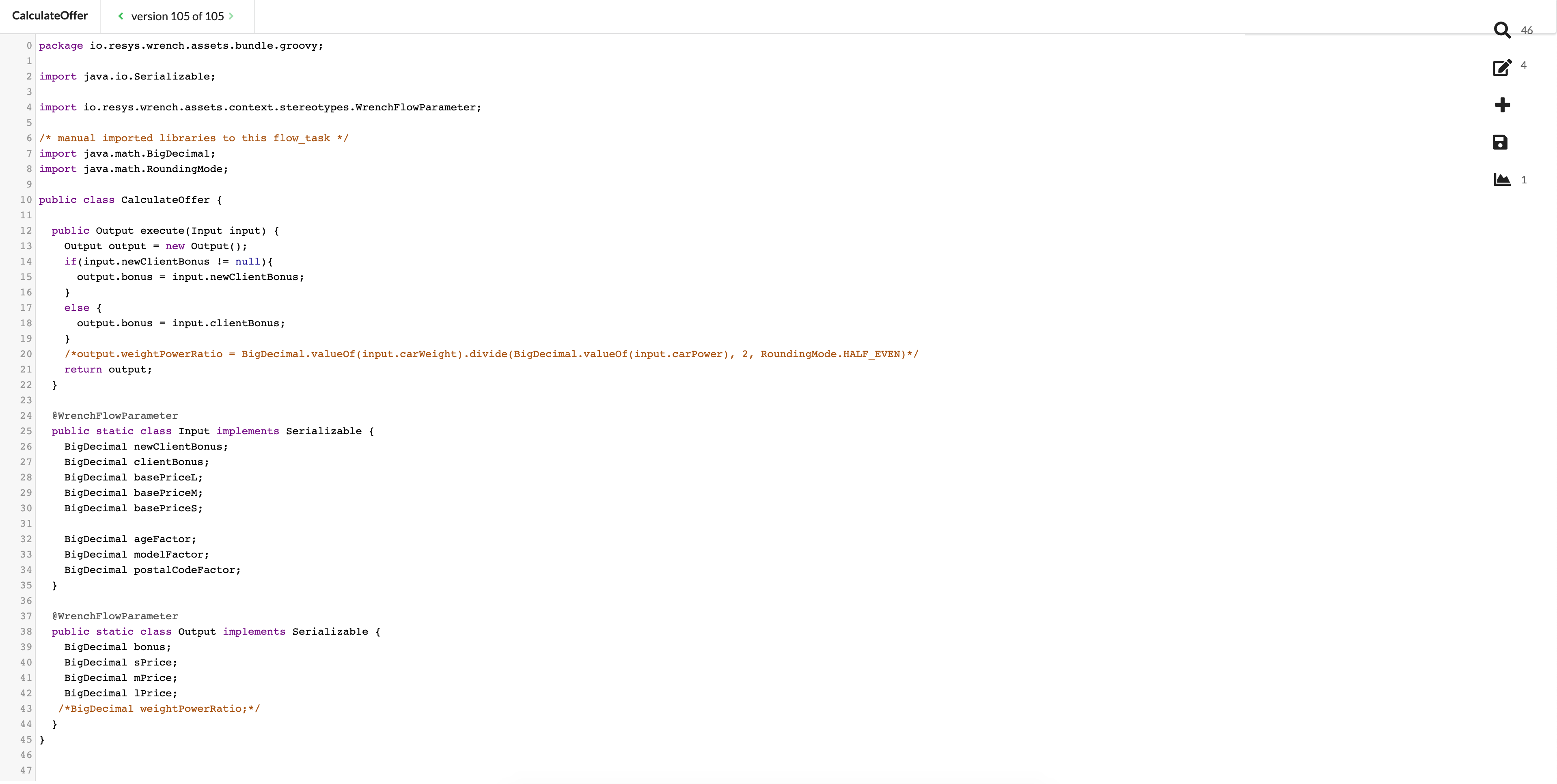
When new service tasks are created, the minimum required Java libraries are automatically imported. Any additional libraries you need can easily be imported manually to ensure the specific functionalties you require.
Below is a screenshot demonstrating a flow task's Java code.
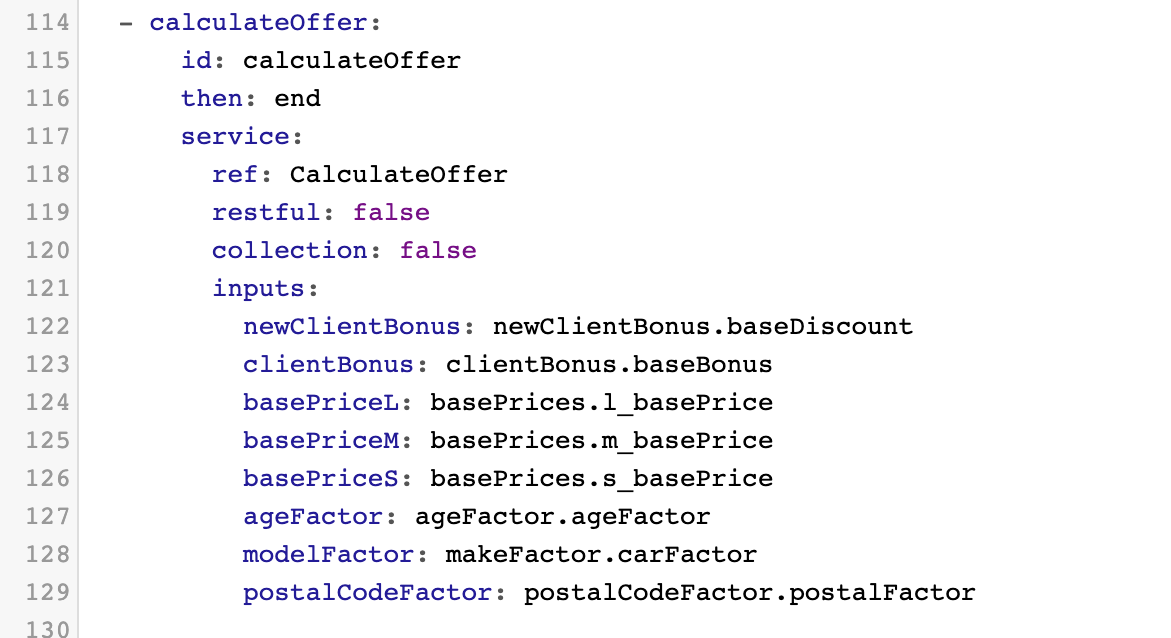
This is the same flow task as seen on theWrench Composer side.
Switch tasks
A switch task is a set of conditions that can be considered as “cases”. Each case has an expression. Only one of these cases is chosen, and the flow execution is routed to only one singular following task.
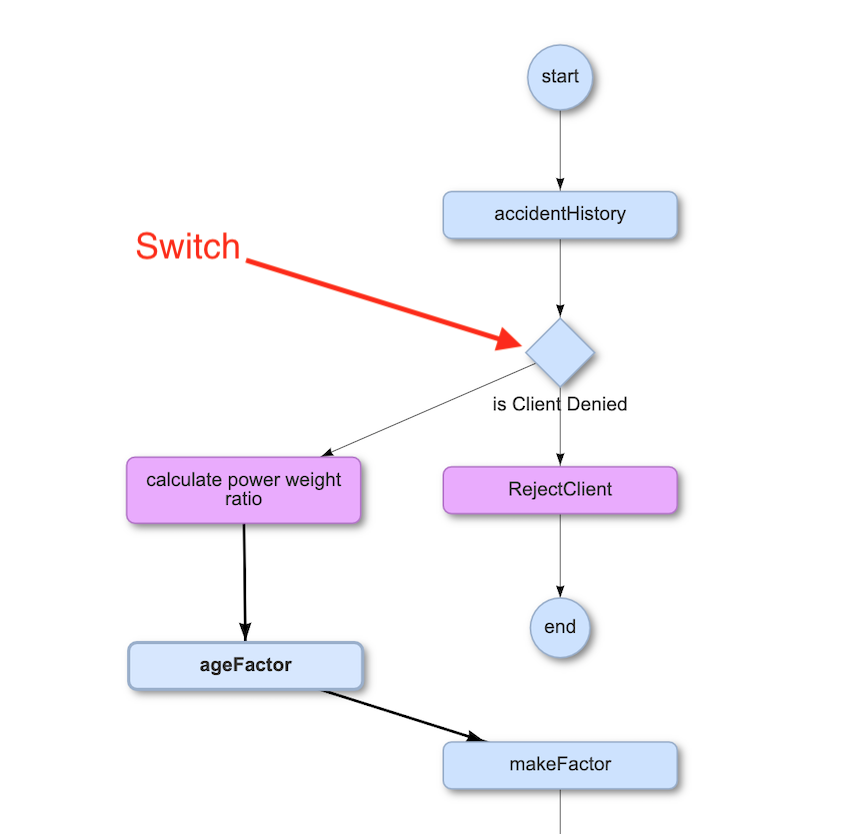
Switch tasks are signified by a diamond shape in the flow diagram.
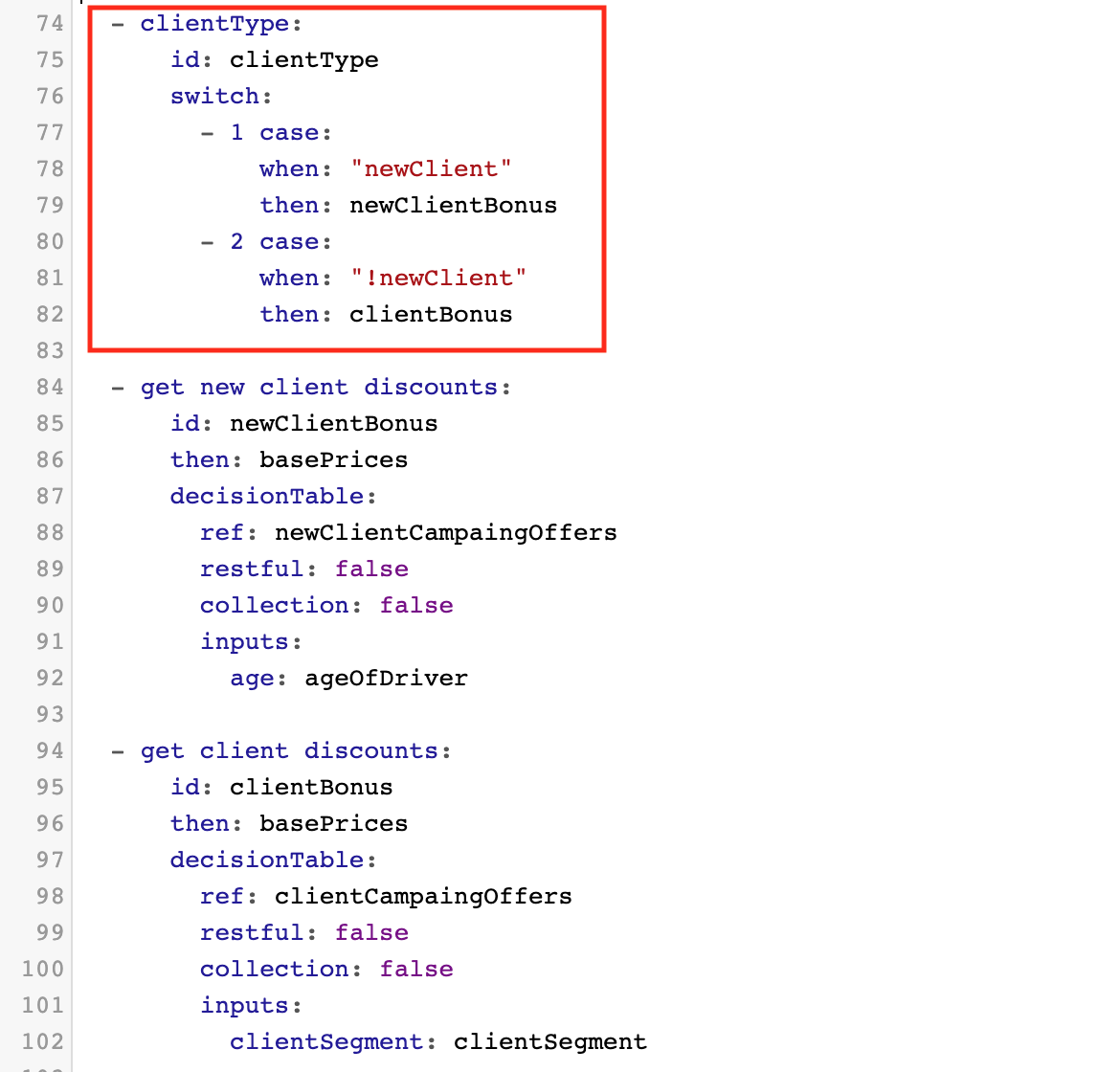
Below is an example of a switch task's code. This task, clientType, will split the flow based on the outcome of the input newClient. If newClient evaluates to TRUE, the flow will move to the next task, a decision table task with ID newClientBonus. If newClient evaluates to FALSE, the flow will move to the decision table task with ID of clientBonus.
This is an example of the graphical representation of a different switch task:
For more information on keywords, see Glossary.
Creating and inserting a new task into a flow
There are two steps to insert a new task:
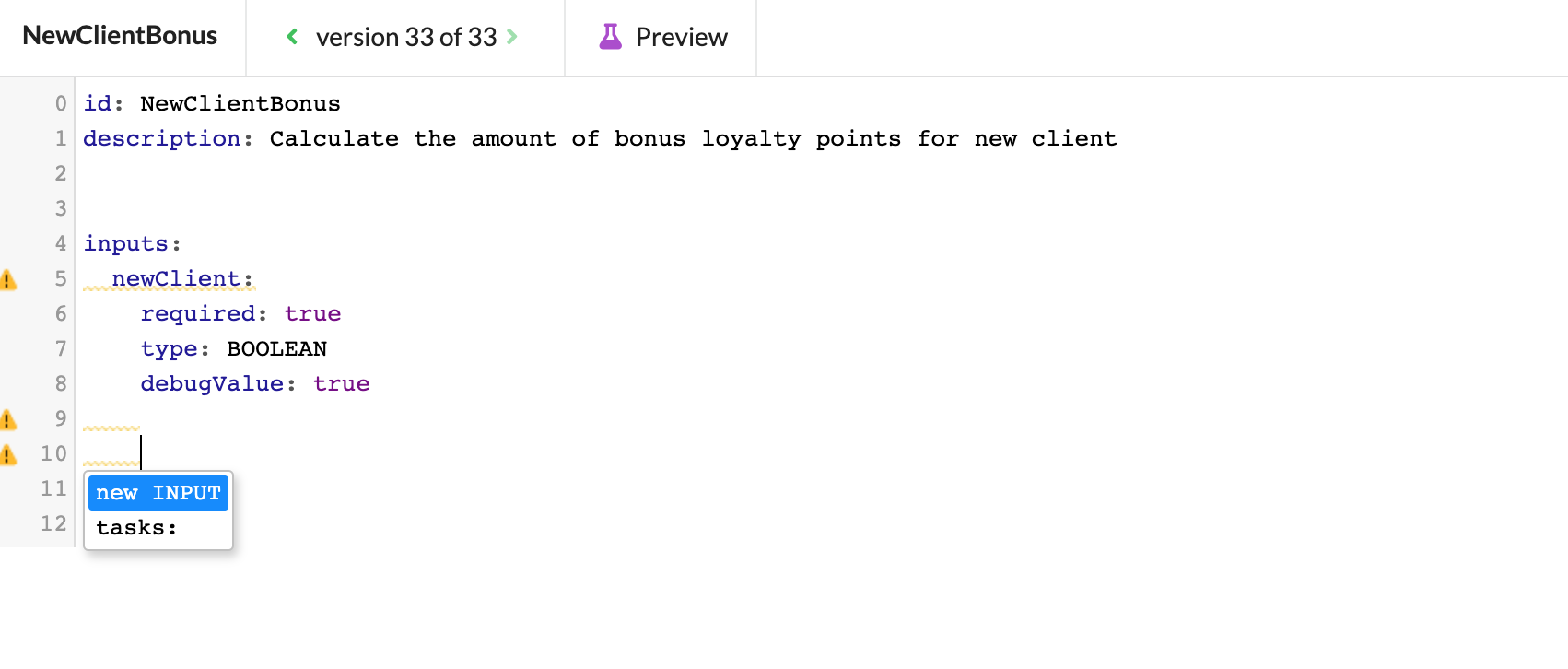
1. Use the keyboard shortcut CTRL + SPACE and select the keyword tasks.
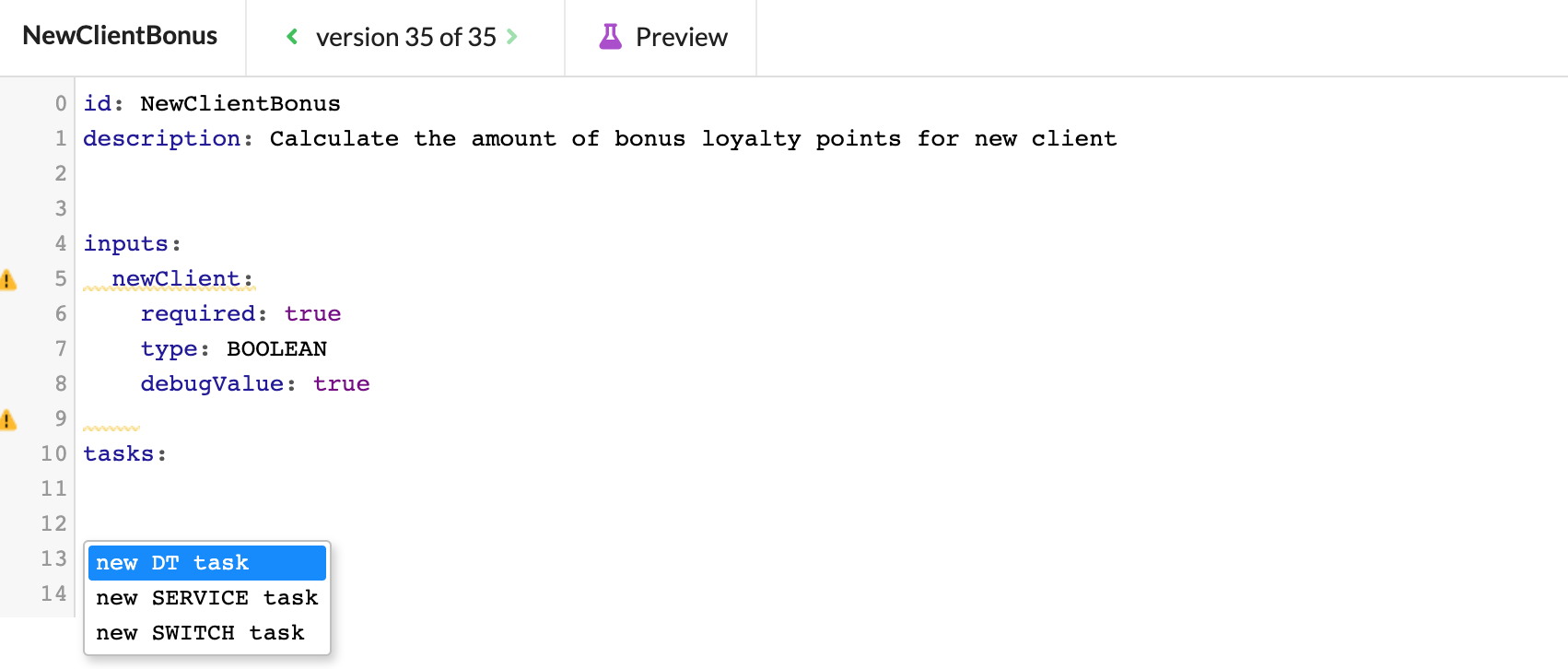
2. Use CTRL + SPACE again to bring up the dropdown menu from which to select the type of task to add.
After this, you can fill in the details of your task, including changing its ID from the default, specifying inputs, and determining subsequent flow direction.
For more information on editing a flow task, see walkthrough