Flows
What's on this page?
- What is a flow?
- Creating a flow
- Structure and elements of a flow
- ID
- Description
- Decision tables
- Flow tasks
- Inputs
- Creating and modifying a flow (INPUTS)
- Creating and modifying a flow (FLOW TASKS)
What is a flow?
A flow can be thought of as a list of tasks to be completed in order to produce a result. Flows comprise the core of the Wrench.
A flow defines the actions and processes that are to come. As an example, flows can describe the steps to take to calculate a car insurance payout (result) based on certain factors such as the age of the driver, the location of the accident, and whether or not the driver was at fault.
Creating a flow
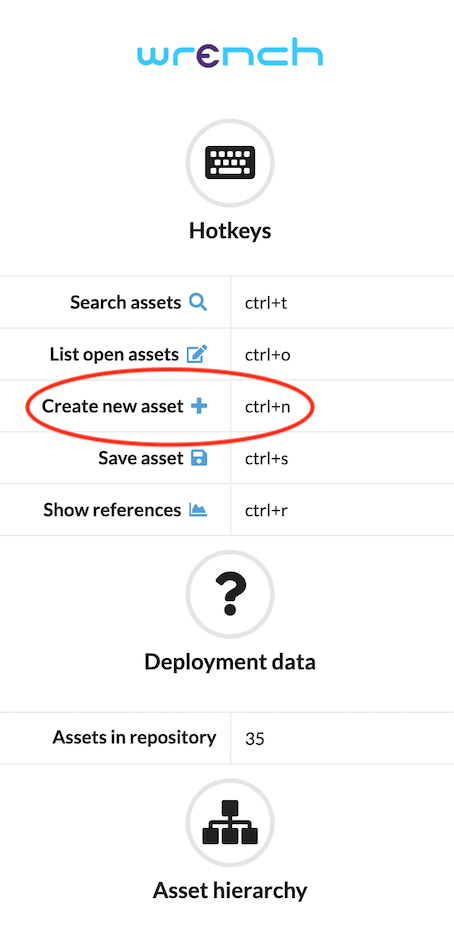
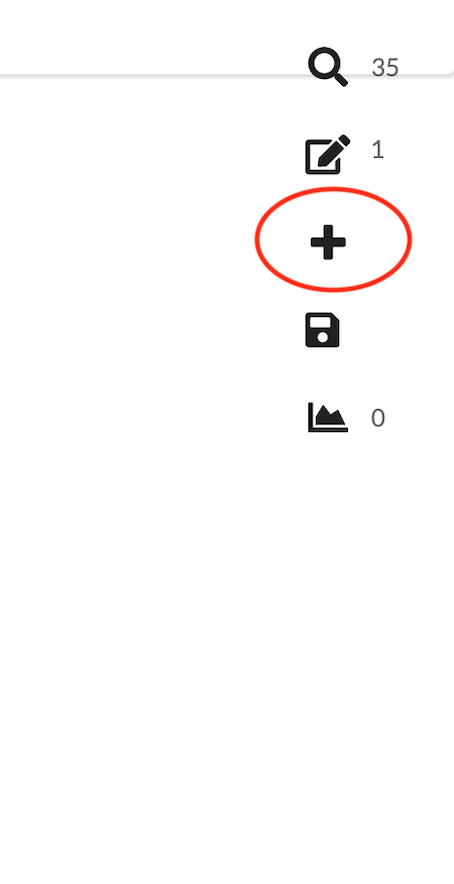
Creating a flow is simple. There are two ways to do this:
- By selecting
Create new assetfrom the landing screen - By selecting
Create new assetfrom the right-hand menu in theWrench Composer
Landing screen
Right-hand menu in theWrench Composer
Structure and elements of a flow
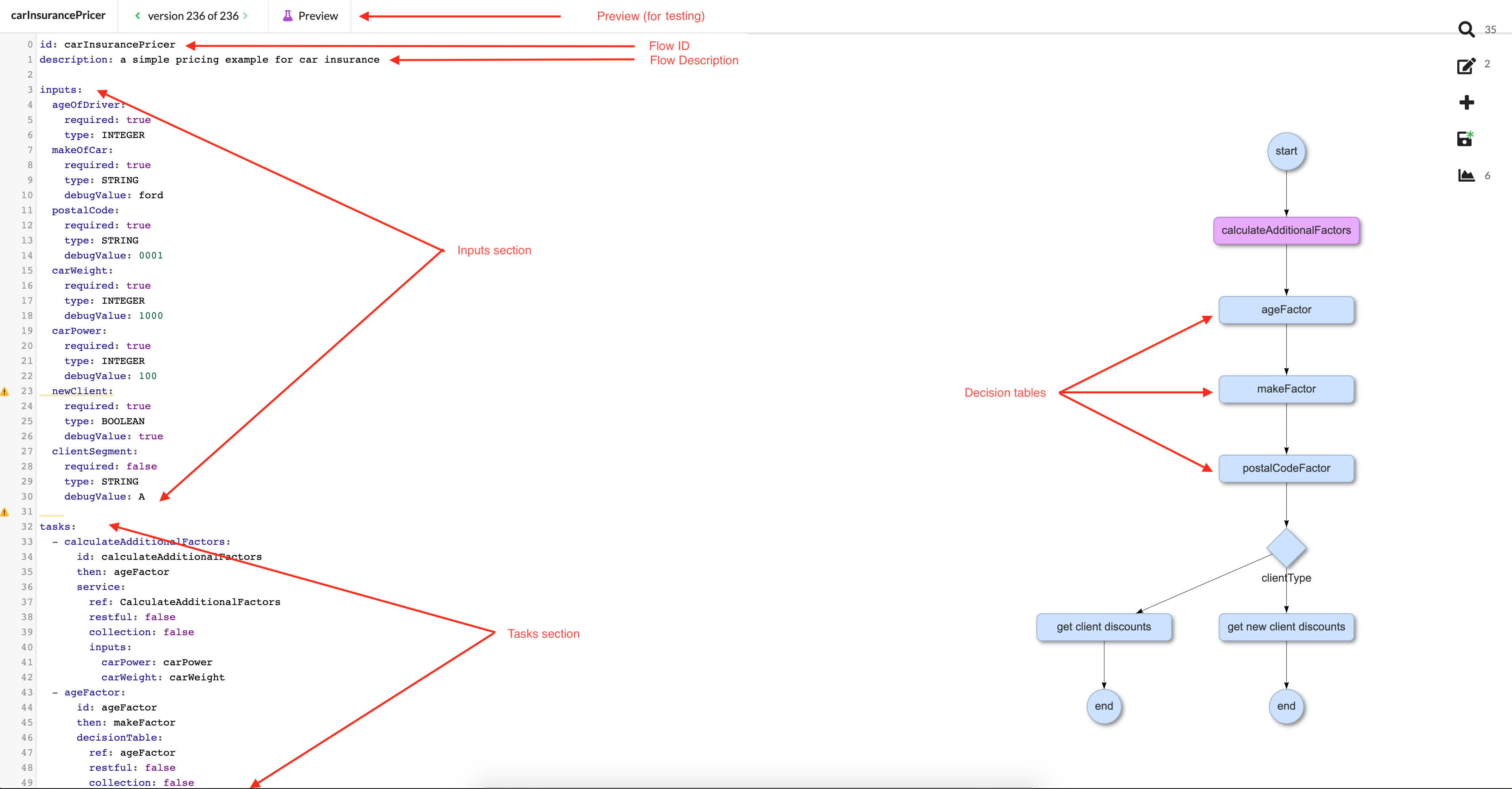
Flows follow a certain structure, which is comprised of a number of specific elements. Flows contain a flow id, a flow description, inputs, decision tables, and flow tasks. The visual representation of a flow's structure can be seen as a series of interconnected bubbles on the right side of the flow editor screen.
- ID is its unique idenfifier.
- Description is a simple String that you can use for explanatory purposes. Description has no bearing on any aspect of the Wrench's core functionality. The asset's description is identified as the first line of its code block, and its text is of a blue colour.
- Flow tasks are the individual actions to take place within the flow. They are located under the tasks keyword in the flow editor screen.
- Decision tables usually resemble spreadsheets which consist of rows which have a set of conditions and a set of actions.
Below is an example flow as seen on the flow editor screen.
Inputs
Inputs are parameters from outside the flow, as an example, data entered via a form or passed on by a service. Inputs are processed by the flow and passed on to each task which has defined them. The tasks define what kind of input parameters they require, and the flow maps these inputs into the tasks.
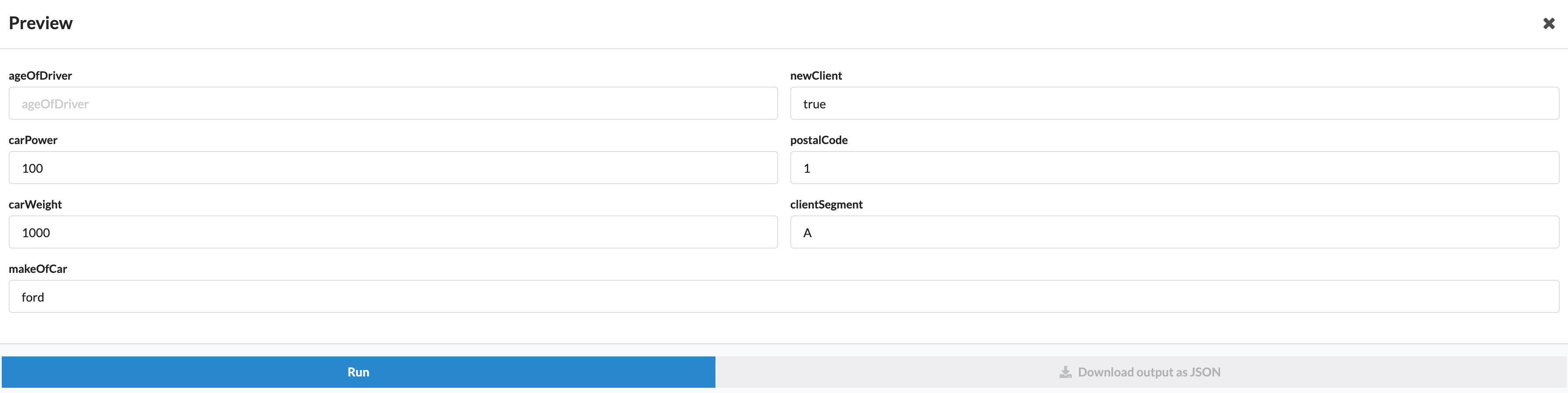
Inputs are defined at the top of the flow editor screen. Looking at the screenshot of a flow above, you can see seven inputs (ageOfDriver, makeOfCar, postalCode, carWeight, carPower, newClient, clientSegment).
When you click the preview button, you are presented with a testing form where those input IDs will appear. The testing form appears below:
Creating and modifying a flow (INPUTS)
When you first create a flow, the editor screen is empty. You will manually add a flow description (optional), inputs, and tasks.
To start adding (and also to add/modify later), place your cursor where you wish to add something, and then press CTRL + SPACE to trigger a dropdown “Insert” menu of possible items to add. When it is not possible to add/modify anything at your cursor's current location, this menu will not appear, nor will it display items that cannot be added in a particular place within the code.
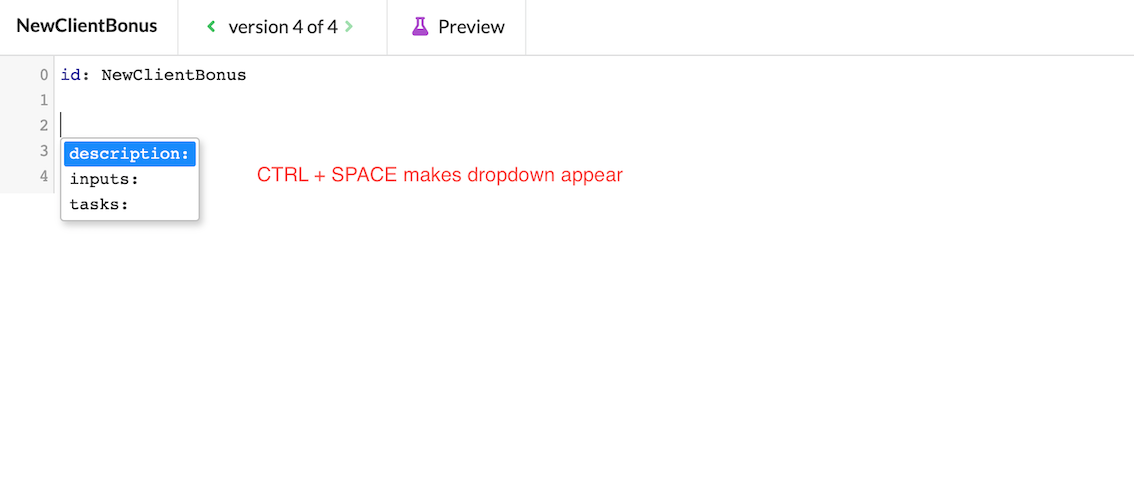
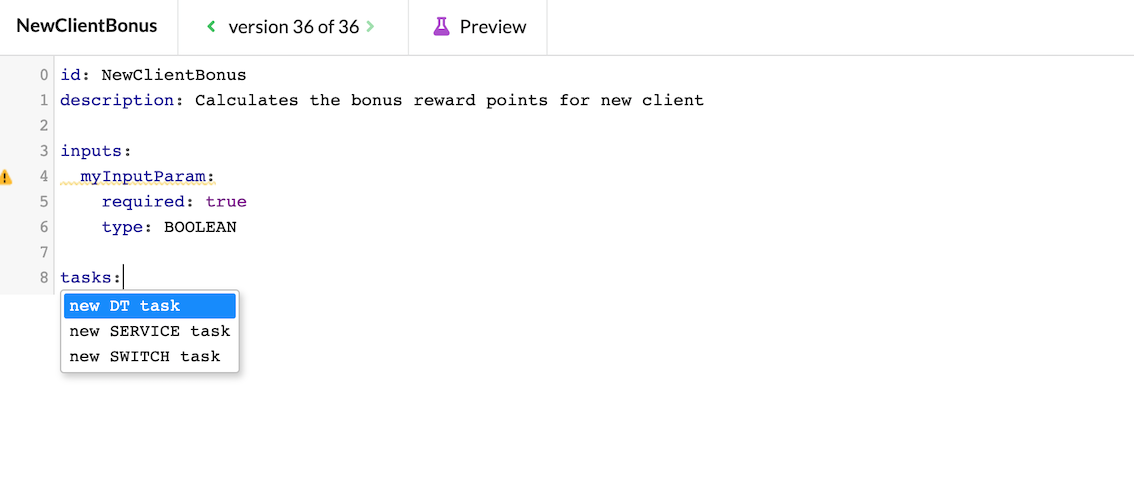
The default values you see upon creating a new input and a new task are as follows:
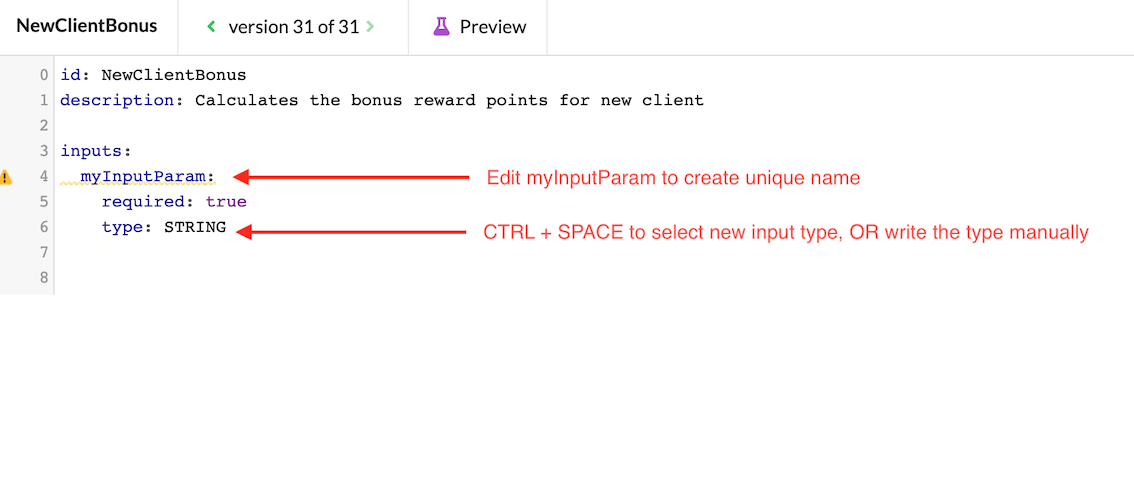
After creating a new input, manually edit its ID to fit your needs, and be sure to specify its input type.
Creating and modifying a flow (FLOW TASKS)
Flow tasks are created in much the same way as inputs. Hit CTRL + SPACE to bring up the dropdown and select the type of task to add.